How to Choose a Laptop: What Actually Matters in 2026
Confused by laptop specs? Here's what to actually check — CPU, RAM, storage, and display — before you buy, explained without the jargon.

Most laptop shopping goes wrong before you even open a spec sheet. You start with a budget, browse whatever’s on sale, and end up comparing numbers you don’t have context for — is 16GB of RAM a lot? Does the processor name mean anything? By the time you’ve read four “best laptops” roundups, you have twelve tabs open and less clarity than when you started.
Here’s the fix: stop comparing laptops to each other, and start with what you’ll actually do on the machine. Every spec that matters — processor, memory, storage, display — only matters in relation to your workload. A laptop that’s perfect for a video editor is wasted money on someone who mostly emails and browses. A laptop that’s fine for browsing will choke the moment a student tries to run a virtual machine for a computer science class.
This guide walks through the decision in the order that actually affects your day-to-day experience, not the order manufacturers list specs in.
Quick Answer
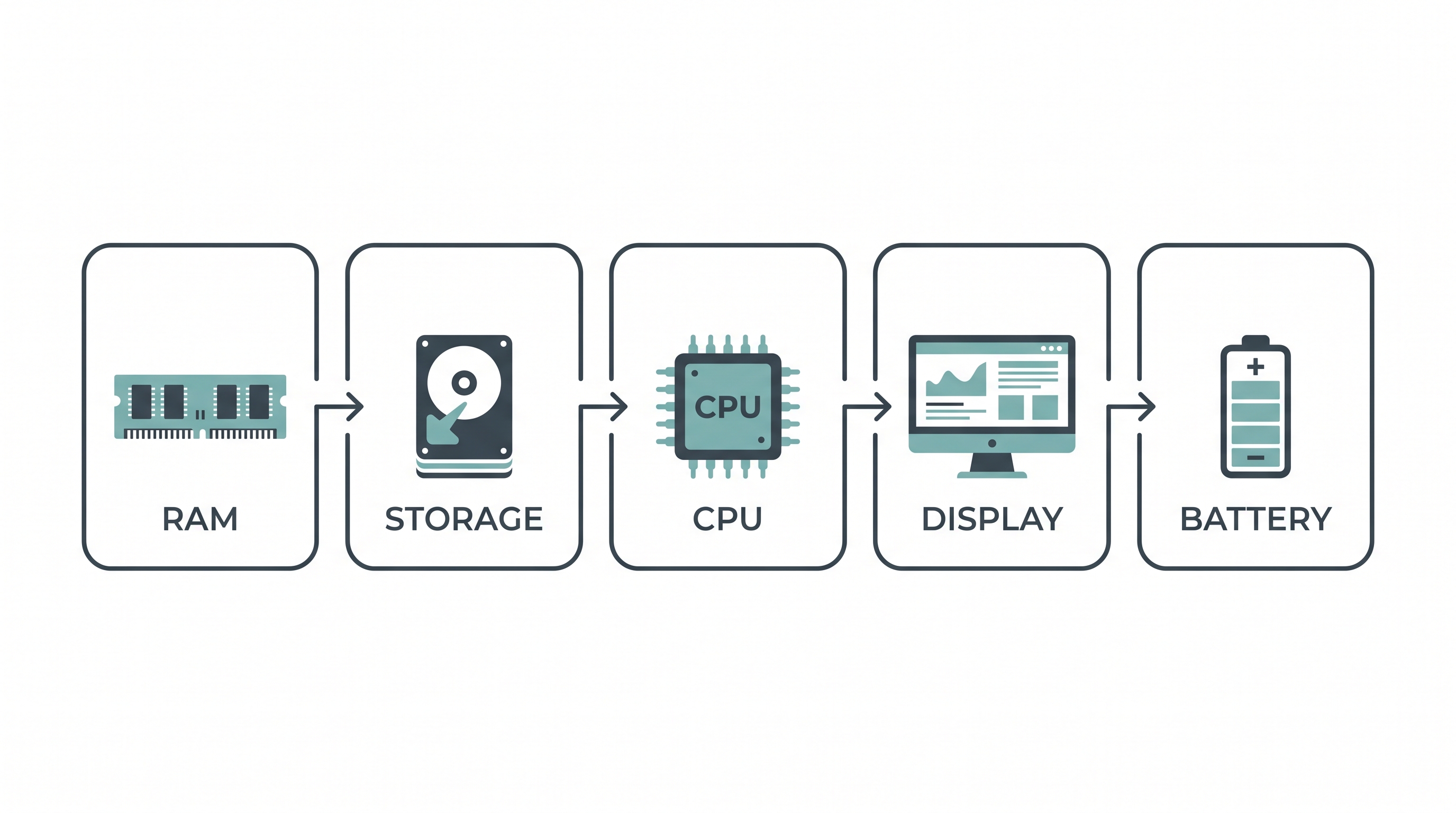
Figure out your use case first, then buy in this order: RAM → storage → CPU → display → battery. RAM and storage are usually soldered in and can’t be upgraded later, so get those right on day one. For most people in 2026, that means 16GB of RAM and a 512GB–1TB NVMe SSD as a baseline, paired with a recent-generation CPU (Intel Core Ultra Series 2, AMD Ryzen AI 300-series, or Apple M4) rather than an older or budget-tier chip.
Start With What You’ll Actually Do
Before any spec matters, be honest about your workload. Most buyers fall into one of these groups, sometimes overlapping:
- Everyday use — browsing, email, streaming, word processing, video calls. No heavy software.
- Study or office work — the above, plus multitasking across many browser tabs, occasional spreadsheets with large datasets, or light photo editing.
- Creative or technical work — video editing, coding with local builds or virtual machines, 3D work, or running multiple demanding apps at once.
- Gaming — anything from casual titles to modern AAA games at decent settings.
If you’re not sure which group you’re in, look at what frustrates you on your current device. Slow app switching points to RAM. Slow boots and file transfers point to storage. Fans spinning loudly under load points to the CPU or GPU. That frustration is a more reliable guide than any spec sheet.
RAM: The Spec That Ages Your Laptop
RAM is how many programs, browser tabs, and background processes your laptop can hold in active memory at once. Run out, and the system starts swapping data to storage, which is dramatically slower — that’s the stutter you feel when switching between a dozen tabs and a video call.
Here’s why RAM deserves the most attention of any single spec: on nearly every laptop sold in 2026, RAM is soldered directly to the motherboard. You can’t add more later the way you could on older laptops or desktops. Whatever you buy is what you’re stuck with for the life of the machine.
A reasonable baseline for 2026:
| RAM | Best for | Feels strained when |
|---|---|---|
| 8GB | Very light use — browsing a handful of tabs, basic documents | Multiple tabs, video calls, or background apps running at once |
| 16GB | Most people — multitasking, browser-tab hoarding, light creative work | Video editing, running virtual machines, heavy multitasking |
| 32GB | Video editing, virtual machines, large datasets | Rendering large 3D projects, multiple demanding apps simultaneously |
| 64GB+ | Specialized work — large-scale 3D rendering, multiple VMs at once | Rarely strained outside professional/enterprise workloads |
Assume it's fixed
If a listing doesn’t state whether RAM is upgradeable, assume it isn’t. Buy for the laptop’s expected lifespan, not for what you need on day one.
Storage: NVMe SSD, and Don’t Undersize It
Two decisions here: the type of storage, and how much of it.
Type first. An NVMe SSD should be treated as non-negotiable in 2026 — it’s dramatically faster than a SATA SSD for everyday tasks like booting, launching apps, and file transfers, and virtually no mainstream laptop still ships with a spinning hard drive. If a listing just says “SSD” without specifying NVMe, it’s worth confirming before buying, since the difference in daily feel is significant.
Capacity second. Like RAM, storage is often soldered or difficult to expand on modern thin laptops, so this is another “buy it right the first time” decision:
- 256GB — tight for anyone who installs more than a handful of apps or keeps local files, photos, or downloaded media. Cloud storage helps, but it’s not a full substitute if your internet is inconsistent.
- 512GB — a comfortable baseline for students and general use.
- 1TB — the sweet spot if you work with large files, install several creative or development tools, or just don’t want to think about storage management.
- 2TB+ — only necessary for video work, large game libraries, or professional media use.
The Processor: Buy Recent, Not Necessarily Expensive
This is the spec people overthink in the wrong direction — obsessing over benchmark charts instead of checking whether the chip is current.
Unlike RAM or storage, you genuinely cannot upgrade the CPU later, and processor generations have moved fast. As of 2026, the three CPU families worth looking for are:
- Intel Core Ultra (Series 2, “Lunar Lake” and successors) — the most balanced option for a typical Windows laptop, with strong efficiency and dedicated AI processing (NPU) for Copilot-style features.
- AMD Ryzen AI 300-series — competitive multi-core performance, and its integrated graphics genuinely outperform Intel’s in many everyday and light-gaming scenarios, which matters if you’re not buying a dedicated GPU.
- Apple M4 (or M4 Pro for heavier work) — exceptional battery efficiency and performance if you’re in the Mac ecosystem.
A simpler rule than memorizing model numbers: on Intel chips, “Core Ultra” in the name signals current-generation hardware; older “Core i5/i7” branding without “Ultra” is the previous generation. On AMD, “AI” in the product name (like Ryzen AI 9) signals a modern chip with a dedicated AI engine, versus older Ryzen numbering without it.
You don’t need the top-tier chip in any of these families unless you’re doing genuinely demanding work — video editing, 3D rendering, compiling large codebases, or gaming at high settings. For everyday and study use, a mid-tier chip from a current generation will outperform a high-tier chip from two generations ago, and usually run cooler and quieter while doing it.
Do you need a dedicated GPU? Only if you’re gaming at meaningful settings, doing video/3D editing, or running machine learning workloads locally. For browsing, office work, and streaming, integrated graphics (built into the CPU) are genuinely sufficient — a dedicated GPU adds cost, weight, and reduces battery life without a real benefit for those tasks.
Display: The Spec You’ll Stare at the Longest
It’s easy to skip past the display and focus on internals, but you’ll spend more hours looking at the screen than thinking about the processor inside it.
What actually matters:
- Panel type. OLED panels offer richer contrast and deeper blacks; IPS panels are generally more affordable and still solid for color accuracy. Avoid older, cheaper TN panels if you have a choice — colors and viewing angles suffer noticeably.
- Resolution. 1920×1080 (Full HD) is the practical minimum for a comfortable, sharp image. Higher resolutions look better, especially on larger screens, but also drain battery faster and demand more from the GPU.
- Refresh rate. 60Hz is fine for general use. 90–120Hz makes scrolling and everyday interactions feel noticeably smoother, and matters more if you game — but it’s not essential for productivity-only use.
- Size. 13–14 inches balances portability and screen real estate well for most people. 15–16 inches suits those who want more workspace and don’t mind the extra weight. Go smaller only if portability is your top priority, since it comes at the cost of visible workspace.
Battery Life: Test the Claim, Not the Marketing
Manufacturer battery estimates are measured under ideal, low-brightness, low-load conditions that rarely match real use. As a rough real-world expectation for 2026 hardware, 6–10 hours of mixed daily use (browsing, documents, video calls) is a reasonable baseline for a well-optimized laptop; chips built around efficiency, like Apple’s M-series or Qualcomm’s Snapdragon X Elite, tend to push meaningfully past that.
If all-day battery matters more to you than raw performance, factor that into your CPU choice above — it’s genuinely part of the same decision, not a separate one.
Build Quality and Things People Forget to Check
A handful of details that don’t show up on a spec sheet but shape how much you’ll like the laptop a year in:
- Keyboard feel. If you type for hours a day, this matters more than almost any internal spec. Try before buying if you can, or read hands-on impressions rather than spec-based reviews.
- Chassis material and rigidity. Metal or magnesium-alloy builds tend to hold up better over years of use than all-plastic ones, and flex less under normal handling.
- Port selection. Confirm the laptop has the ports you actually use — USB-C (ideally with Thunderbolt support for faster transfers and external displays), and at least one full-size USB-A if you rely on older peripherals. Many ultra-thin laptops now ship with USB-C only, which means budgeting for a dongle.
- Repairability and service. A laptop you can actually get serviced, with available parts and support, tends to cost less per year of ownership than a slightly cheaper one you replace sooner.
 Photo by Sergi Kabrera on Unsplash
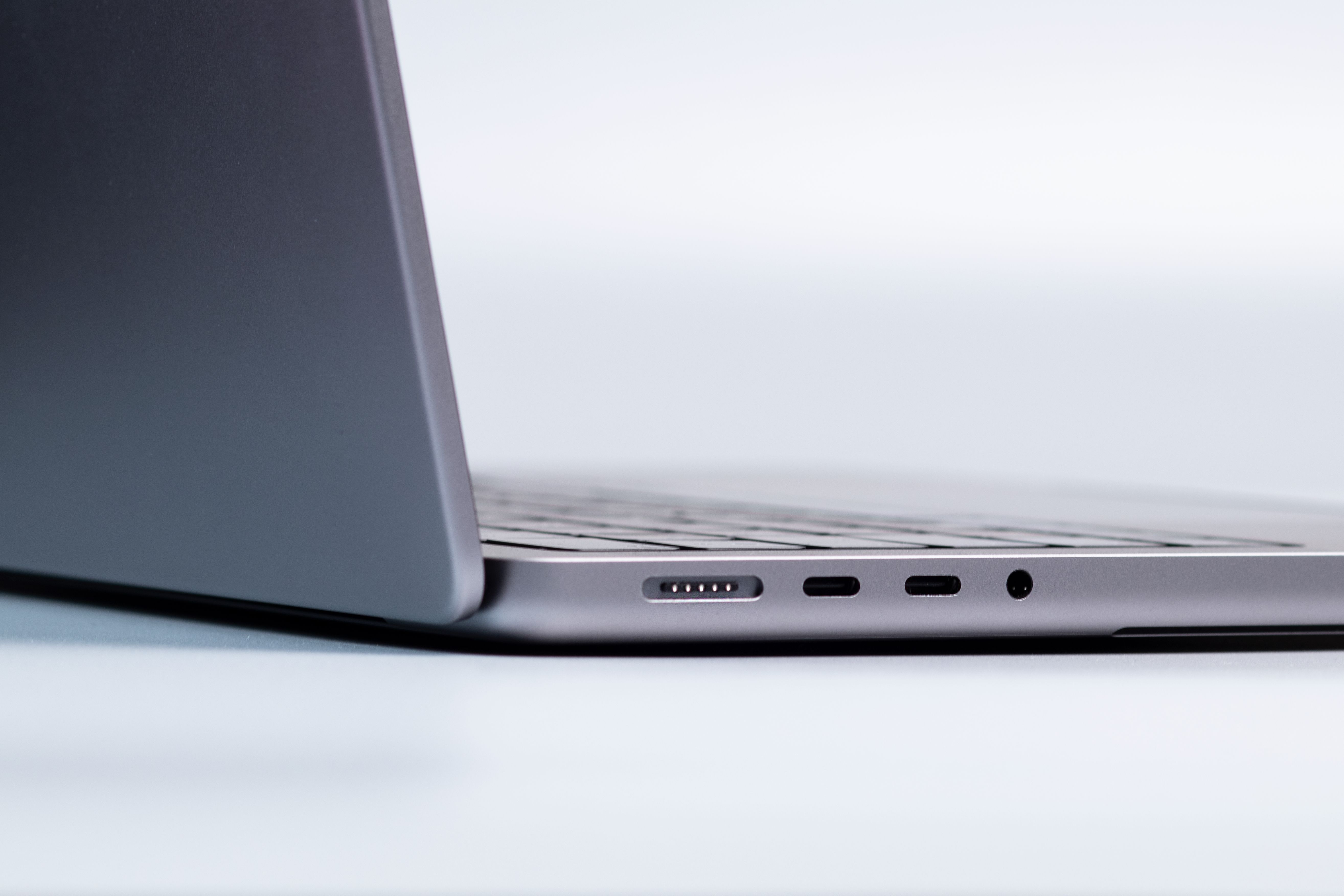 Photo by dlxmedia.hu on Pexels
Putting It Together: A Simple Buying Order
- Define your use case honestly, based on what frustrates you about your current device.
- Set RAM first — 16GB minimum for most people, more if your workload demands it.
- Set storage second — NVMe SSD, 512GB–1TB for most people.
- Choose a current-generation CPU that matches your workload, without over-buying performance you won’t use.
- Check the display against how you’ll use the laptop — size, panel type, refresh rate.
- Confirm battery life matches your actual daily routine, not the marketing number.
- Look past the spec sheet at keyboard feel, build quality, and ports before finalizing.
Common Mistakes Worth Avoiding
The most common regret
Buying RAM or storage for today instead of the laptop’s lifespan. Since both are usually fixed at purchase, under-buying here is the single most common regret people report.
- Chasing the highest-tier CPU “just in case.” Unless your workload genuinely demands it, that money is often better spent on RAM, storage, or display quality — components you’ll notice in daily use.
- Ignoring the keyboard and trackpad. These are the parts of the laptop you physically touch every session; a great spec sheet doesn’t fix an uncomfortable typing experience.
- Assuming a bigger screen means a better laptop. Size is a trade-off against portability and battery life, not an upgrade in itself.
Frequently Asked Questions
How much RAM do I really need in a laptop? 16GB is a reasonable minimum for most people who want the laptop to stay comfortable for several years. 8GB works only for very light use, and heavier workloads like video editing or running virtual machines benefit from 32GB or more.
Is a dedicated graphics card (GPU) necessary? Only if you game at meaningful settings, edit video or 3D content, or run machine learning workloads locally. For browsing, office work, and streaming, integrated graphics built into the processor are sufficient.
What’s the difference between an NVMe SSD and a regular SSD? NVMe SSDs are significantly faster for everyday tasks like booting up, launching apps, and transferring files, compared to older SATA SSDs. Both are far faster than a traditional spinning hard drive, but NVMe is the current standard worth prioritizing.
Should I buy a laptop with a higher-resolution or higher-refresh-rate display? Higher resolution and refresh rates look and feel better, but they also use more battery and demand more from the processor and graphics. Full HD (1920×1080) at 60Hz is a solid baseline for general use; go higher mainly if you game, edit visual content, or specifically value screen smoothness.
How long should a laptop realistically last? With 16GB+ RAM and a current-generation processor, most well-built laptops remain comfortable to use for three to five years. Buying underpowered RAM or storage to save money upfront is the most common reason people replace a laptop sooner than they’d like.
Do I need to buy the newest processor generation available? Not the newest specifically, but a recent one. A current mid-tier chip generally outperforms a high-tier chip from a couple of generations back, while running cooler and more efficiently — so generation matters more than tier within a generation.
The Bottom Line
There’s no single “best” laptop — only the right laptop for what you’re actually going to do with it. Get RAM and storage right first, since those are the decisions you can’t undo later. Choose a current-generation processor sized to your real workload rather than the biggest number you can afford. Everything else — display, battery, build quality — is about matching the laptop to how you’ll actually use it day to day, not about chasing a spec sheet.

Newsletter
Get new field notes in your inbox.
Related articles
PS5 vs Xbox Series X vs Nintendo Switch 2: The Complete 2026 Console Guide
A detailed breakdown of every current gaming console — performance, exclusives, pricing, and which one actually fits how you play.

Best Budget Laptops in 2026
Six laptops under $700 that don't feel like a compromise, tested for everyday work, browsing, and light creative use.